
Import from Google Drive
Step 1: Open up Your Google Drive
Section titled “Step 1: Open up Your Google Drive”Open up the Google Drive folder that contains the files you’d like to import!
Step 2: Select Your Files and Download
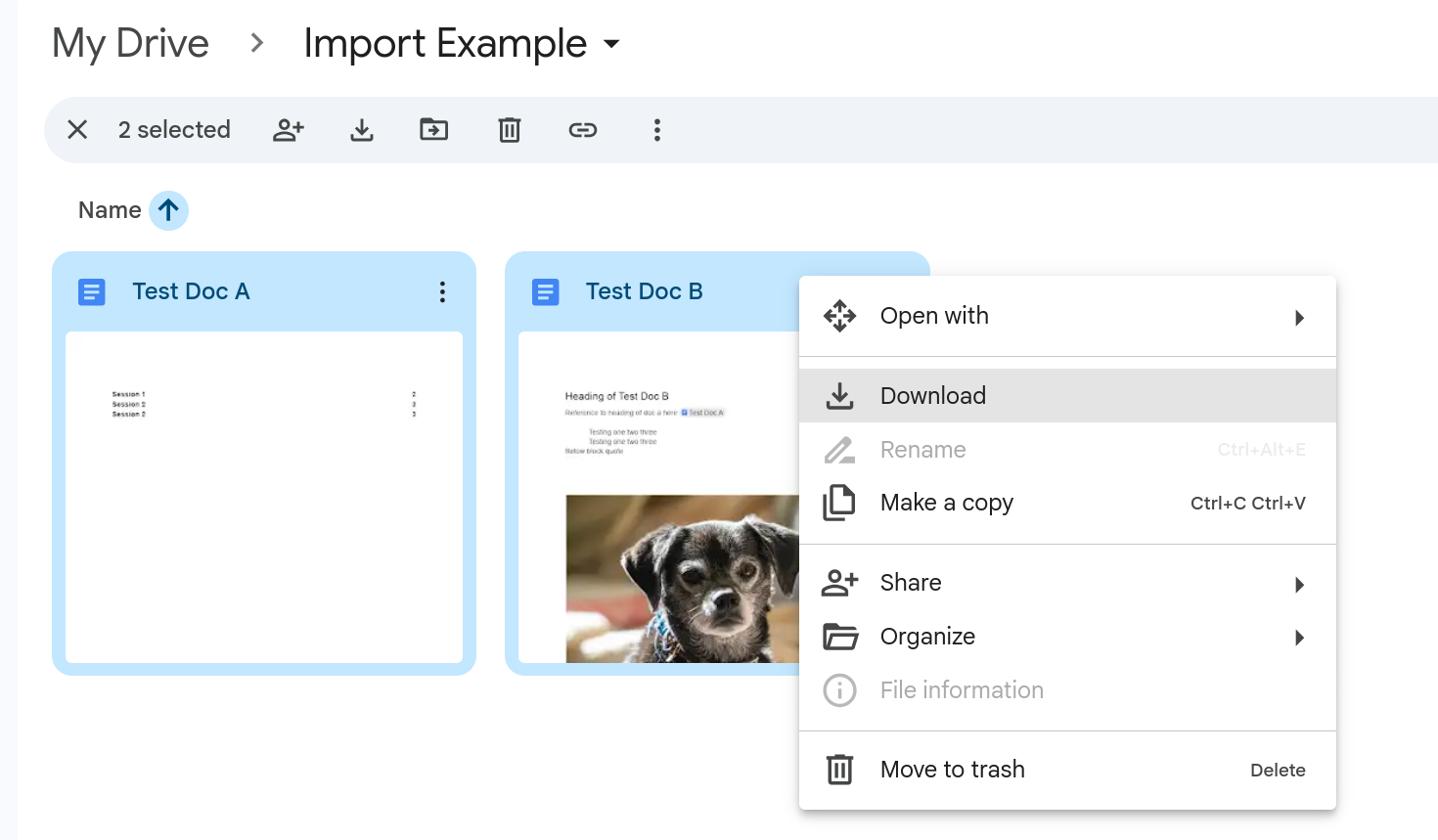
Section titled “Step 2: Select Your Files and Download”Select the select the files you’d like to download, using shift or ctrl to select multiple files at once. Once your files are selected right-click and hit the download button! Please note, that at the moment we only have support for Google Docs files.
Step 3: Locate the Downloaded Files
Section titled “Step 3: Locate the Downloaded Files”Open up your system’s File Explorer and navigate to the folder you’ve downloaded your Google Drive files too. If you’ve downloaded multiple files at once your files should come prebundled as a zip and you can proceed to step 5. If you’ve downloaded a single file, please compress it as described in step 4.
Step 4: Select and Compress Your Files
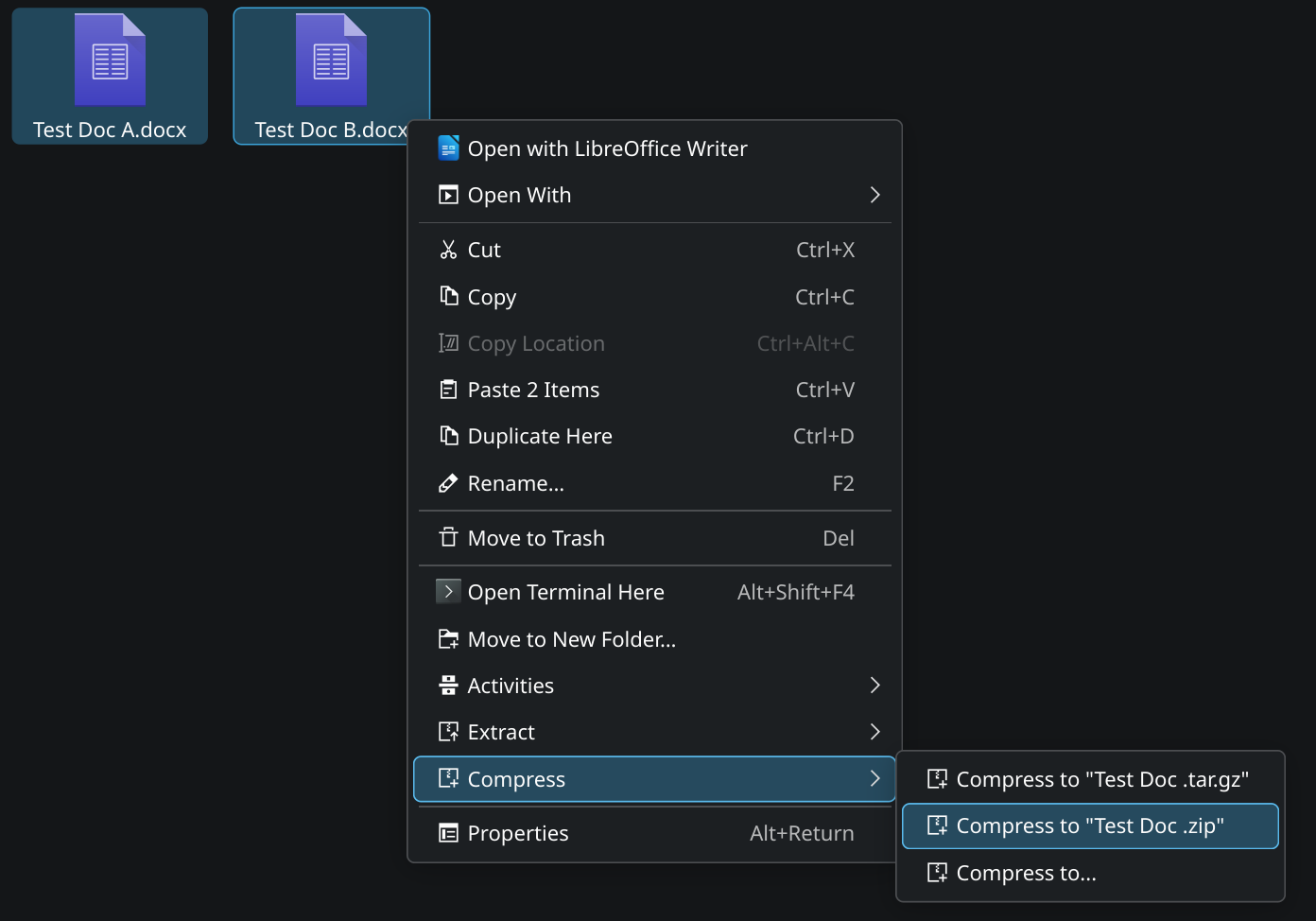
Section titled “Step 4: Select and Compress Your Files”Select the Docx file you’ve downloaded, right-click and find the compress to zip option within your native file system.
Step 5: Upload your Zip File
Section titled “Step 5: Upload your Zip File”Finally we can return to Feynote and select the Browse button of our File Selection page. Select the zipped file you’ve created and click submit!
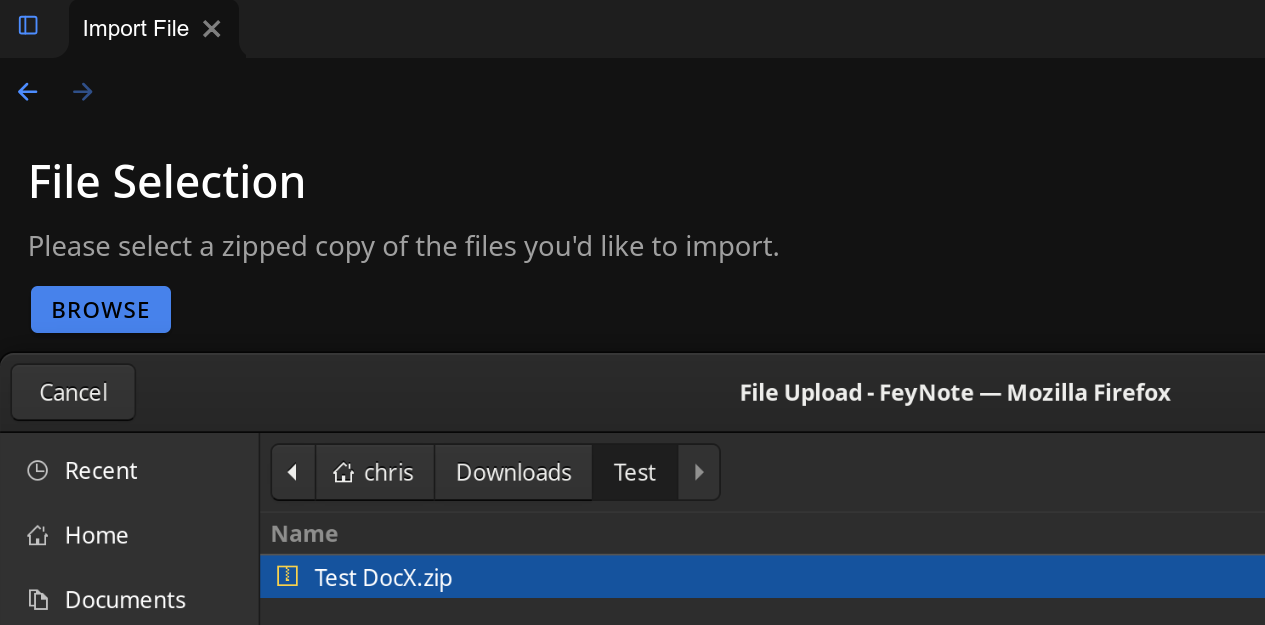
That’s it! Your zip file will start to upload and once its done it will autonavigate you back to the import page where we’ll convert your notes for you! Please do not close or navigate away from the File Selection page until the zip upload is done.