
Importing from Obsidian
This guide will help you import your files from Obsidian into Feynote. Select your operating system to get started:
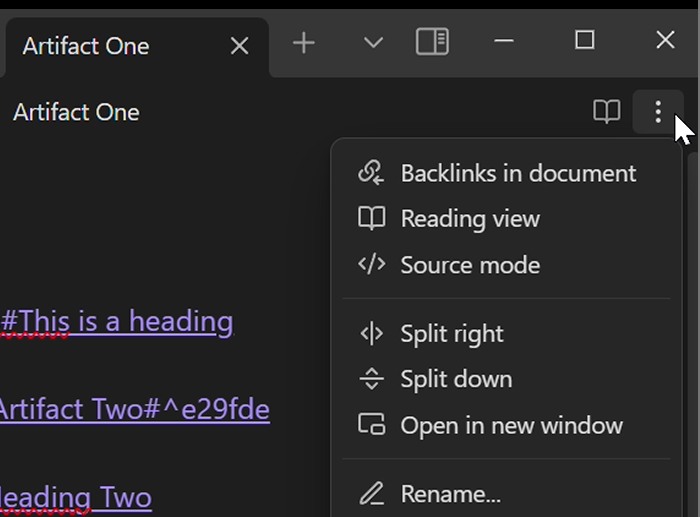
Step 1: Open the Ellipsis Menu
Section titled “Step 1: Open the Ellipsis Menu”Importing your files from Obsidian can be done in a few simple steps;
- First open up Obsidian and find the ellipsis located in the top right corner of your application.
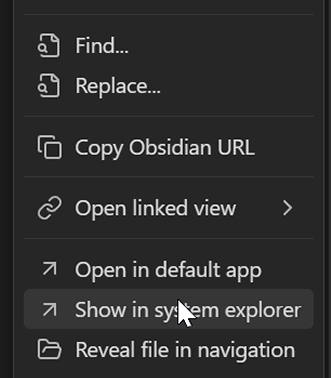
Step 2: Show in System Explorer
Section titled “Step 2: Show in System Explorer”Select the option from the dropdown menu called “Show in System Explorer”.
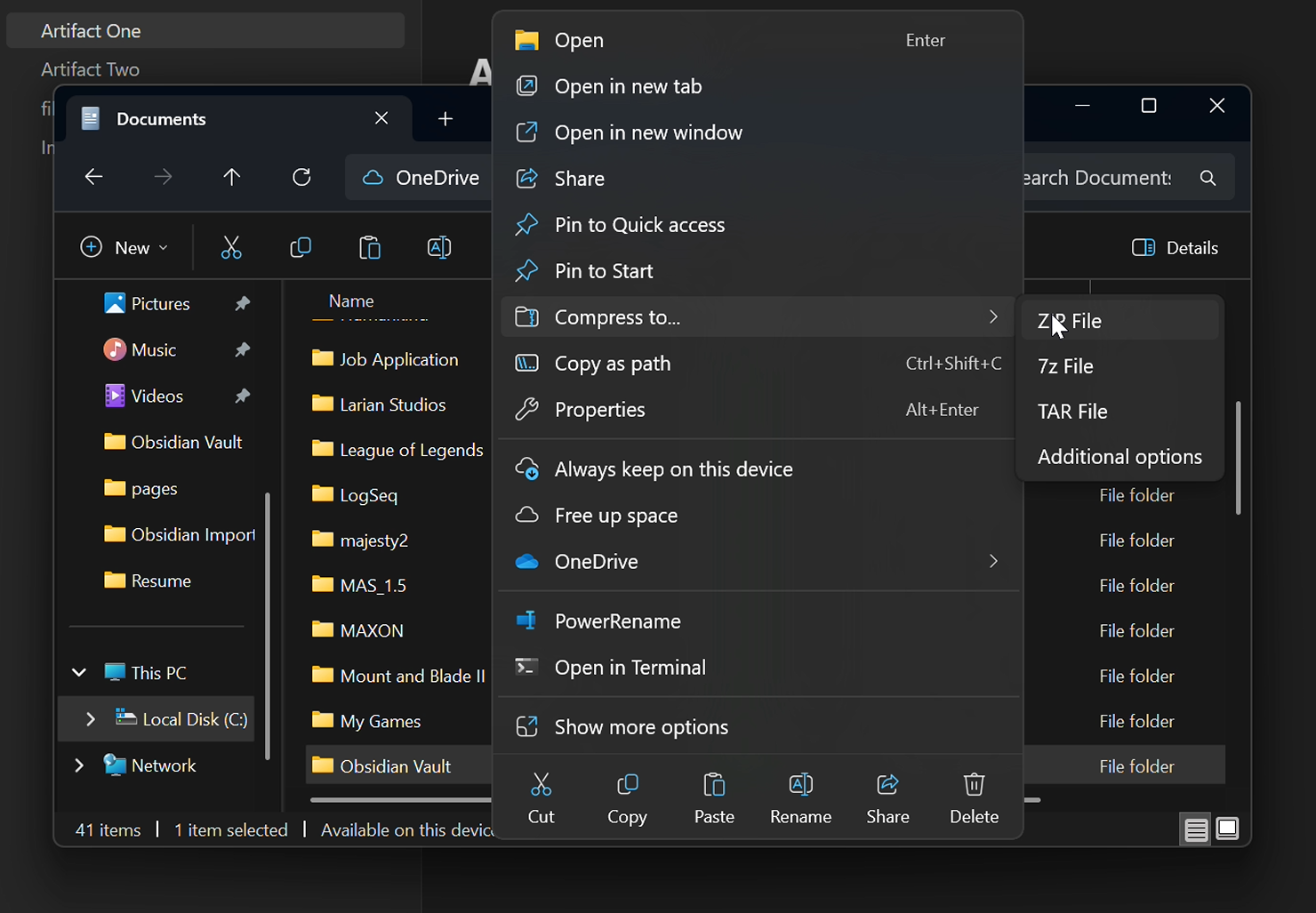
Step 3: Locate and Zip Your Vault
Section titled “Step 3: Locate and Zip Your Vault”Clicking on that dropdown option will open up your system’s file explorer and plant you somewhere within your “Obsidian Vault” folder. Navigate outwards to where you can select this folder, right-click, and select the option to compress it to a zip.
Step 4: Upload your Zip!
Section titled “Step 4: Upload your Zip!”Finally we can return to Feynote and select the Browse button of our File Selection page. Select the file you’ve zipped file and click submit!
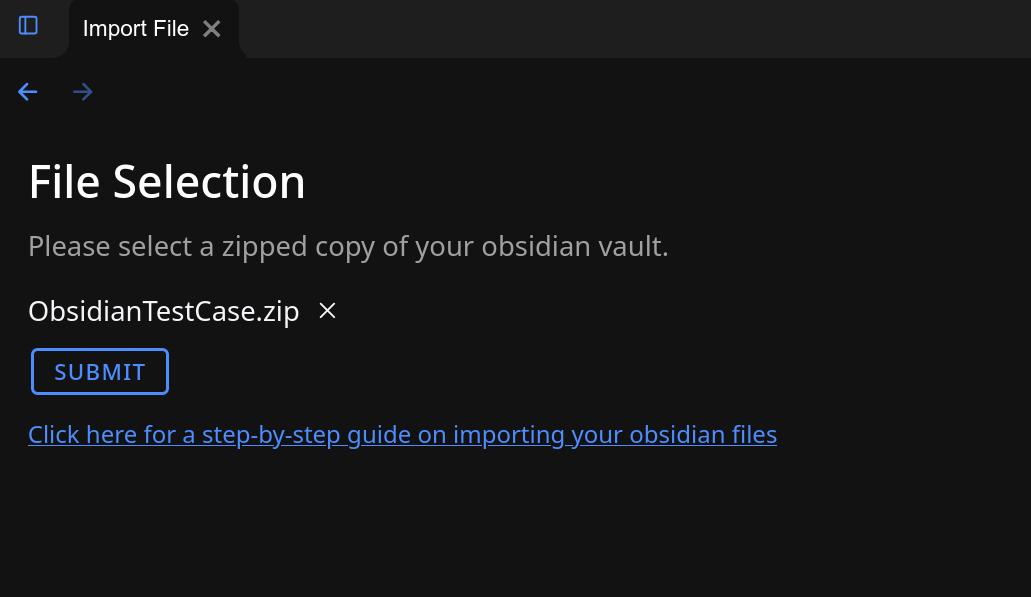
That’s it! Your zip file will start to upload and once its done it will autonavigate you back to the import page where we’ll convert your notes for you! Please do not close or navigate away from the File Selection page until the zip upload is done.